
An agent can write a screen and still leave an important question: does the flow work when someone uses the browser? The microsoft/playwright-cli repository adds browser automation commands that a programming agent can call from the terminal. It is a tool for the agent, not a code agent in itself.
Dicas4 min
Playwright CLI: test web apps with AI agents
Playwright CLI lets programming agents interact with a browser via commands and skills. See how to test a web app flow on TodoMVC, install the tool, and protect sessions and login data.

Marcelo Santiago
Criador do bridgecode
The biggest AI newsletter in the World
Get AI articles in your inbox
Technical curation on models, agents and coding tools. No spam, unsubscribe anytime.
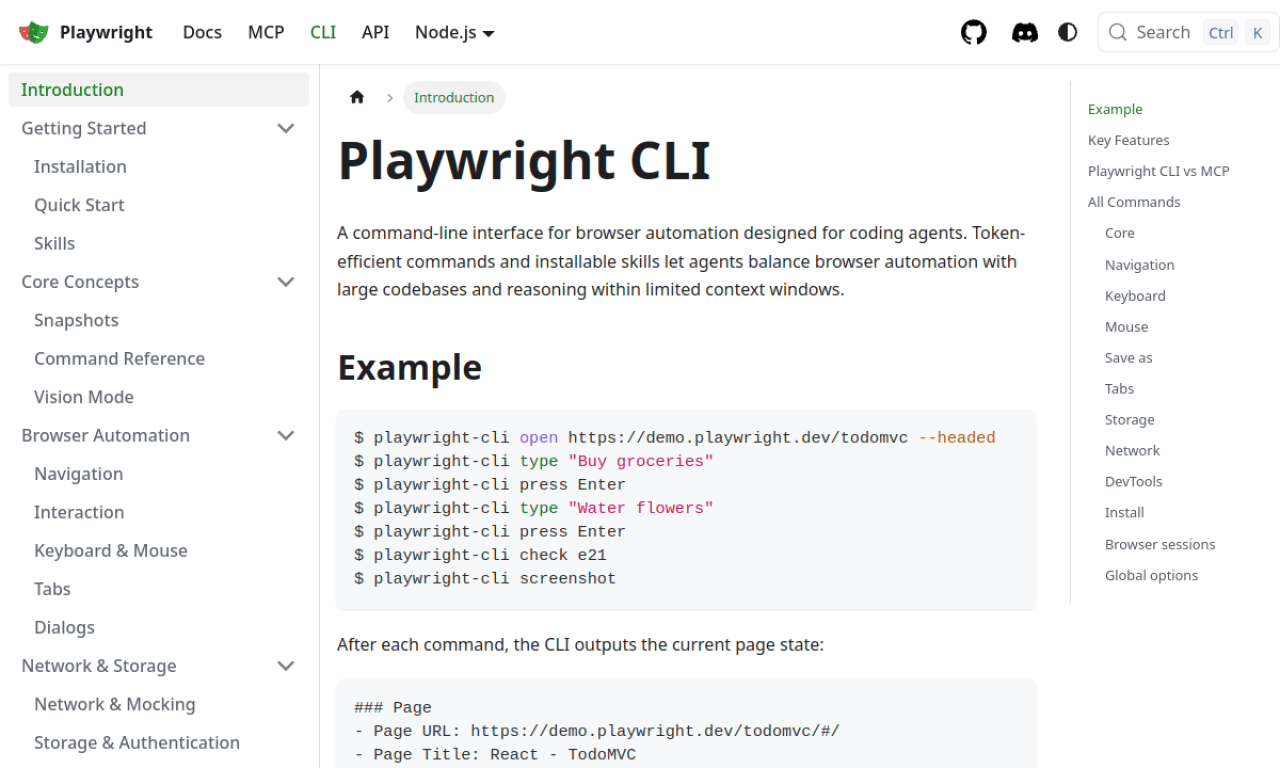
The official documentation shows how to open pages, inspect accessible snapshots, interact with elements and save screenshots. In this guide, we will use the public TodoMVC demo to test a simple flow without login or personal data.
In this article you will see:
- What the Playwright CLI is for and how it differs from MCP.
- How to install the CLI and, optionally, the project skill.
- How to ask an agent to walk through a flow and record what it observed.
- Considerations about sessions, cookies and production environments.
What the Playwright CLI does
The Playwright CLI drives a browser via terminal commands. An agent can open a page, read the interface snapshot, click or fill fields and capture an image. After each action, the tool returns the observed state; the agent can use the updated references to continue.
The official repository includes a skill that explains the commands and links to more detailed guides. The installation instructions mention Claude Code, GitHub Copilot and other agents compatible with local skills. Even without installing the skill, you can ask the agent to consult playwright-cli --help and use the available commands.
Prerequisites and installation
The Playwright CLI installation documentation requires Node.js 20 or newer. There is a difference compared to the metadata of the latest package on npm, which declares compatibility with Node.js 18 or newer. To avoid surprises, use Node 20+ and check the documentation before installing.
Install the CLI globally and check the commands:
Terminal
npm install -g @playwright/cli@latest
playwright-cli --helpIf the project already has Playwright as a dependency, the documentation also shows how to check the local installation and call the CLI via npx playwright cli.
To initialize the workspace and install the required browser, follow the workspace initialization step:
Terminal
playwright-cli installThis command creates the folder .playwright, adds this folder to .gitignore and downloads the configured browser when necessary. The documentation explains that the browser can also be downloaded automatically on first use.
To install the skill instructions in the shared pattern .agents/skills, use:
Terminal
playwright-cli install --skills=agentsIn Claude Code, playwright-cli install --skills uses the folder .claude/skills by default. The path .agents/skills will only be discovered automatically by agents that support this pattern; otherwise, ask the agent to run the CLI directly. See the details on the official skill installation page.
Do a safe test on TodoMVC
The official quick start uses a public TodoMVC demo. Open the visible browser and request an initial inspection:
Terminal
playwright-cli open https://demo.playwright.dev/todomvc/ --headed
playwright-cli snapshotThe snapshot shows the page's accessible tree and references that can be used in the next commands. These references are generated for the session: do not copy an identifier from an old tutorial. Read the latest snapshot before clicking or filling a field.
You can ask the agent:
Use the Playwright CLI to test https://demo.playwright.dev/todomvc/. Inspect the snapshot before interacting. Add two tasks, mark one as completed and check the state of each item in the snapshot. Save a screenshot and report only the checks you observed. Do not log in or navigate to other domains.
When you're done, the screenshot can be saved with playwright-cli screenshot --filename=todo-flow.png and the session closed with:
Terminal
playwright-cli closeThe demo only proves the flow that was run at that moment. A screenshot does not prove that all of your product's requirements were tested. To test your application, switch the address to the staging environment, define the acceptance criteria beforehand and include error states that matter for your case.
CLI or MCP: which to choose?
Playwright CLI and Playwright MCP are different ways to connect browser automation to an agent. With CLI, the agent runs terminal commands; with MCP, it calls structured tools. The official documentation compares these two modes and suggests CLI for coding agent flows and MCP for explorations that benefit from a long session and continuous introspection. This is the maintainer's guidance, not an independent benchmark that proves one option is always faster.
If your need is to connect a browser server to the VS Code chat, also check our guide on MCP setup in VS Code. To organize tasks and review code after testing, check out the six steps to work with programming agents.
Security: use test data and take care of the session
Start with a public page or a test environment. CLI can click, fill forms and send actions; therefore, do not point to production with write permissions without defining limits and supervision.
By default, the session keeps cookies and storage while the browser is open, but the state is lost when it closes. The option --persistent writes the profile to disk. The storage and authentication documentation warns that files generated by playwright-cli state-save may contain authentication tokens: do not send them to the agent unless necessary and never commit them to the repository.
CLI helps explore a flow and record evidence. For a repeatable suite in CI, also use Playwright Test, which includes a test runner, assertions, isolation and reporting. Playwright's own documentation presents CLI and the test framework as distinct options.
Frequently asked questions about Playwright CLI with programming agents
Is Playwright CLI a programming agent?
No. It is a browser automation CLI that programming agents can call from the terminal. It performs interactions and returns snapshots and screenshots for review.
Do I need to install the skill to use Playwright CLI?
No. The skill gives the agent instructions and references about the commands. You can also ask it to check `playwright-cli --help` and call the CLI from the terminal.
Does Playwright CLI replace Playwright Test?
No. The CLI helps coding agents interact with the browser. Playwright Test is a separate framework for reproducible suites, assertions, CI execution and reporting.
How to protect cookies and login data?
Use test data and accounts. Saved state can contain cookies and tokens; never commit those files. The default profile is in memory, while `--persistent` writes data to disk.
Conclusion
microsoft/playwright-cli is a good option when you want an agent to check an interface in the browser without relying only on a textual description. Start with the public demo, observe the snapshots, use current references and confirm the result visually. Then adapt the same method to a test environment, with clear criteria and fake data.
When browser validation is part of a larger flow, combine it with planning, execution and review in distinct roles. See how to organize this work at bridgecode.
Source: microsoft/playwright-cli repository · official Playwright CLI documentation · official quick start
Tags:#Playwright CLI#automação de navegador#agentes de programação#testes end-to-end#CLI
Developer and creator of bridgecode, an agentic development environment for orchestrating squads of AI agents. Helps people going from vibe coding to professional development move from idea to shipped product.
Related articles
Dicas
5 tips for using Codex CLI in your workflow
The official openai/codex repository hosts Codex CLI. Here are 5 practical tips to use the tool with more control in your development workflow.
6 min

Dicas
5 tips for using Playwright Test Agents
Planner, Generator and Healer split test creation in Playwright. See how to review the results and the caveat about the Docker image v1.64.1.
6 min
Dicas
Tencent's Hy4: how to test the open-source model with vision
Tencent launched Hy4, an open-source model with vision and computer use and a 1 million token context. See what changed and how to test it today.
6 min