
Building an AI app gets simpler when you start with a small task, not the whole business. ChatGPT Sites lets you describe a lightweight app, review a preview, and publish without building all the infrastructure.

Dicas5 min
How to create an AI app using ChatGPT Sites
Learn how to turn a repetitive task into a lightweight app with ChatGPT Sites, test the preview, review permissions and publish safely.

Marcelo Santiago
Criador do bridgecode
The biggest AI newsletter in the World
Get AI articles in your inbox
Technical curation on models, agents and coding tools. No spam, unsubscribe anytime.
Use this playbook for prototypes, internal dashboards, and team tools. A SaaS with its own authentication, critical integrations, or regulatory requirements still needs specific architecture and testing.
In this article you’ll see:
- How to choose a task that fits in a first app.
- How to write the prompt for ChatGPT Sites.
- How to test data, permissions, and sharing before publishing.
- When to move from prototype to a traditional software project.
How building an AI app starts with a narrow task
A good first app solves a routine today done in a spreadsheet, conversation or form, like tracking tickets, organizing content requests or filtering documents.
Avoid “create a complete system for my company”. Choose a task, who will use it and the expected result. This way you make explicit decisions about users, data, rules and errors.
The official ChatGPT Sites guide describes lightweight apps you create, preview, publish and share via ChatGPT. Review the preview before releasing access.
Before building an AI app, prepare the data and access
On the web, open Work; on the desktop app, select ChatGPT and then Work, or open Codex. Check if Sites is available in your account or workspace. Permissions vary, so check the official access and limits page.
Separate only the files and data you are authorized to use. If the app queries documents or connected apps, decide upfront which information each person actually needs to see.
Define three conditions: what the person must do, what appears with no results, and which action requires human confirmation.
Step 1: turn the idea into a user flow
Describe the start and end of the task in one sentence. For example: “A team member records a request, tracks the status, and finds requests due this week”.
List the essential screens. For this example, a form, a request list, filters by status, and upcoming deadlines are enough.
Defer charts, notifications and connections that are not part of the main flow. Each extra feature creates more behaviors to test.
Step 2: write a prompt the AI can verify
In ChatGPT Sites, describe what you want to build and include the word “website” or mention @Sites, as per the official step by step. Attach only the necessary files and say which sources should be considered true.
An initial prompt can follow this format:
Use @Sites to create an internal requests app. Show a form to record title, owner, priority and due date. Include a searchable list with filters by status. Use only the data I attached. If information is missing, ask. Show a clear message when a search finds no results. Do not publish yet.
Add usage requirements, not just appearance. Ask that the app works on a small screen, explains form errors, and keeps links to the original documents.
For a connected dashboard, say which data to query and which actions are read only. Each visitor uses their own connected accounts and permissions, so sharing a link does not share your credentials.
Step 3: test the preview with real cases and error cases
Open the preview as a new user. Check if the fields make sense, if the buttons work, and if the screen makes the next step clear.
Test empty inputs, invalid values, searches with no results, duplicates, and filter combinations. Also check if the linked files are accessible to the people who will use the app.
Image credit: OpenAI, official walkthrough. The screenshot is illustrative and the page itself notes it shows a previous interface. Current documentation instructs you to open Work in ChatGPT to start a new Site.
The official seven minute video demo shows how to create a shareable Site and the access controls.
Step 4: review storage, connections and permissions
Official documentation states that each Site database can store up to 10 GB. That limit helps size a prototype, but it does not replace an architecture decision for sensitive data, large volumes, or a mission critical service.
If the app uses an external connection, check which data and actions it requests. Prefer read only when editing is not needed and test the experience with an account that represents the intended audience.
Review personal data on screens, URLs and error messages. Do not publish confidential information without authorization and choose an audience compatible with the content.
Step 5: publish to the right audience
New Sites are private by default. Review the full address, open the sharing menu and choose who can access. Options can include only the owner, selected people, or, when public publishing is enabled, anyone with the link.
Before expanding access, ask someone on the team to test with their own account. Confirm what that person sees and whether the app does not reveal internal data.
Save a reviewed version before important changes. Saving and publishing are different steps; treat the active version as production, even if it is a prototype.
How to fix the most common app problems
If the preview invents information, limit it to the provided sources and ask it to question when data is missing. If the interface gets too large, remove secondary features.
If someone cannot open the app, check the link audience and the account used. If a connection fails, confirm the integration and the permissions enabled by the administrator.
If a change breaks something, roll back to the previous version, test the essential flows and only then publish. For a project with code and tests in parallel, see how to get started with Codex, Copilot and Claude Code and how to split tasks between agents.
Frequently asked questions about create an AI app using ChatGPT Sites
How to create an AI app using ChatGPT Sites?
On the web, open Work; on the desktop app, select ChatGPT and then Work, or open Codex. Describe the site, review the preview, make adjustments and publish only after confirming access.
Do I need to know how to code to create a Site in ChatGPT?
You do not need to write the app manually to get started. You describe what you want, test the preview and request changes, but complete projects may still require specific architecture and testing.
Are ChatGPT Sites private by default?
Yes. A new Site is limited to the owner and workspace administrators until access is changed.
What is the storage limit for a ChatGPT Site?
Each Site database can store up to 10 GB. Documentation distinguishes the database from file storage.
Can I use ChatGPT Sites to launch a public SaaS?
Sites are for web experiences and lightweight apps in the ChatGPT hosted environment. If the product requires authentication, integrations and its own operations, plan an appropriate implementation.
ChatGPT Sites speeds up prototypes, but does not replace a SaaS
ChatGPT Sites helps validate a flow, build an internal dashboard or share a lightweight tool. Start with one task, test permissions and publish only to the chosen audience.
If the idea requires security, identity, integrations and own operations, treat the prototype as learning and plan a proper implementation. The app should reduce uncertainty, not hide technical decisions.
From prototype to product, coordinate your agents in a single flow on bridgecode, with each specialist working in parallel in its own isolated space.
Source: OpenAI
Tags:#ChatGPT Sites#como criar um app com IA#prototipagem#apps com IA#tutorial
Developer and creator of bridgecode, an agentic development environment for orchestrating squads of AI agents. Helps people going from vibe coding to professional development move from idea to shipped product.
Related articles
Dicas
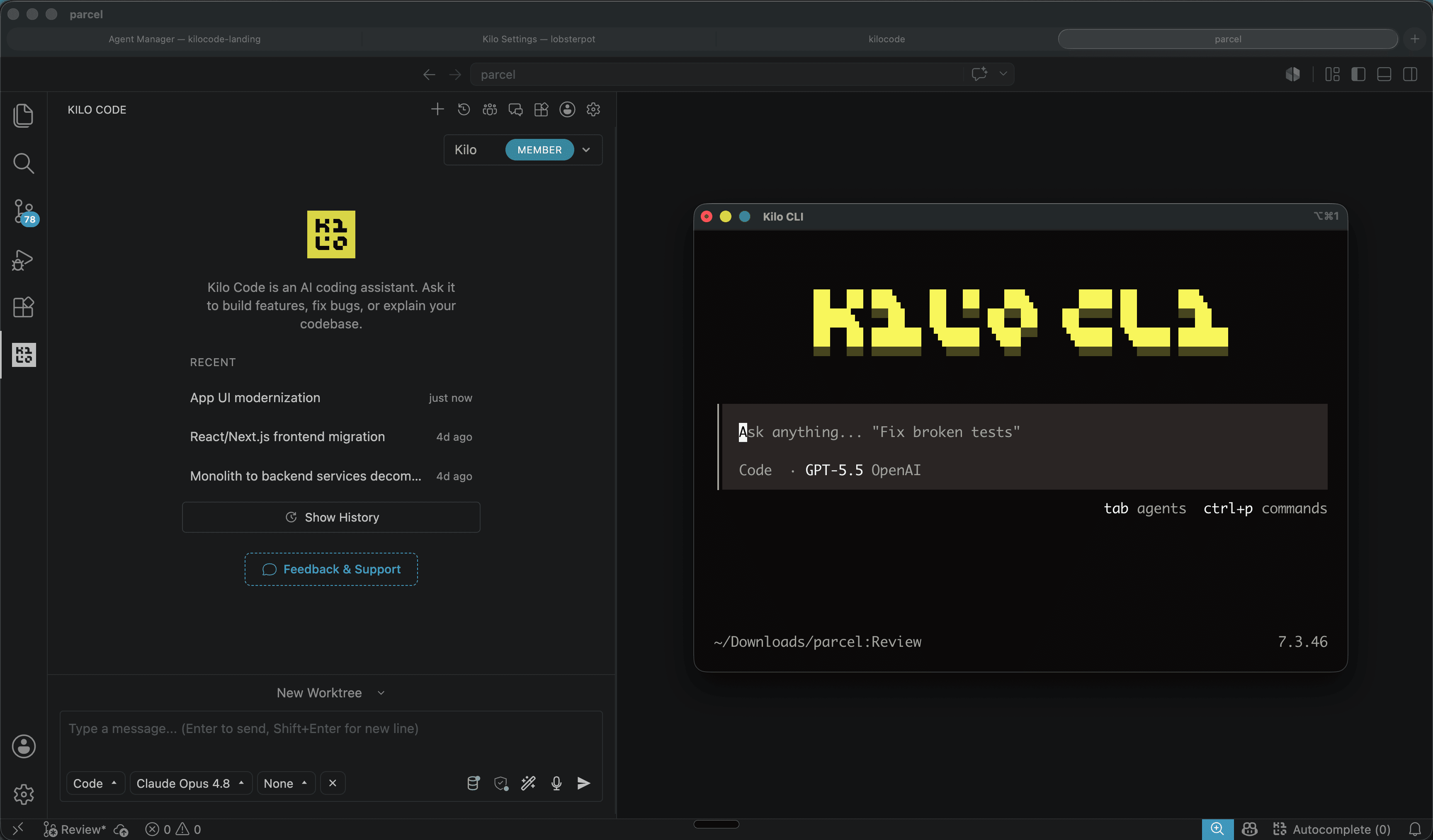
Kilo Code: open source coding agent for VS Code and CLI
Kilo Code is an open source coding agent for VS Code, JetBrains and CLI, with more than 500 models and provider direct pricing.
6 min
Dicas
How to test AI agents in cloud operations with CloudOpsBench
CloudOpsBench releases 45 cloud operation tasks to test your AI agent. See how to clone, validate and run against an emulator or real AWS.
6 min

Dicas
Tencent's Hy4: 1M context, vision and tool calling
Tencent's Hy4 brings 1 million tokens of context, vision and native tool calling for code agents and long duration tasks.
5 min