
Summary

Dicas6 min
How to run local LLMs with Ollama and keep your code private
Install Ollama, download a coding model and connect it to an AI agent. Your code stays on your computer, and you can still mix in cloud agents.

Marcelo Santiago
Criador do bridgecode
The biggest AI newsletter in the World
Get AI articles in your inbox
Technical curation on models, agents and coding tools. No spam, unsubscribe anytime.
- What you'll learn: install Ollama, download a model and use it with a programming agent.
- Who it's for: anyone who wants project code to stay on their own computer.
- Outcome: a local model responding and helping you code.
- Prerequisite: a computer with enough memory for the chosen model.
LLM stands for large language model, the type of AI behind programming assistants. Normally it runs in the cloud, on a company's servers.
With Ollama, the model runs on your computer. The code you show the AI does not need to leave your machine.
What you need before you start
- Windows, macOS or Linux.
- VS Code or Antigravity IDE.
- A test project in Git.
Step 1: install Ollama
Download the installer from the official site, ollama.com, and follow the screens. On Linux, the documentation provides an install command for the terminal.
To check if it worked, open the terminal and run:
Terminal
ollama --versionStep 2: download and test a model
Choose a programming model from Ollama's site library. Start with a small one.
Terminal
ollama run qwen2.5-coderThe first use downloads the model. Then it opens a conversation in the terminal. Ask something simple, like "write a function that adds two numbers".
To exit, type /bye.
To see all the models you've already downloaded, run ollama list. This helps you remember the exact name when configuring the agent.
Step 3: connect the model to an agent
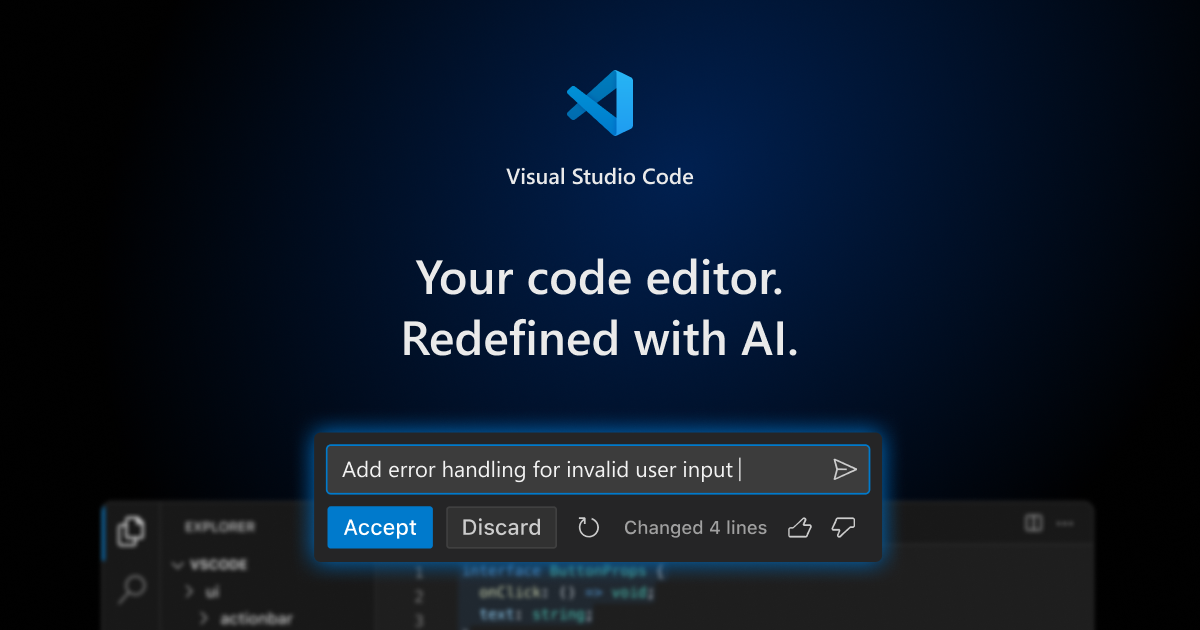
Chatting in the terminal is good for testing. To actually code, connect Ollama to an agent that reads and edits the project.
Ollama leaves a local server running on your computer. Agents like Cline, OpenCode and Aider know how to talk to it. In the agent settings, choose Ollama as the provider and select the downloaded model.
See more options in our top 5 open source AI assistants to run locally.
Local or cloud?
Local models tend to be smaller. They work well for simple tasks and for code that cannot leave the computer.
For larger tasks, a cloud agent can help. In Claude Code, for example, you sign in with a Pro or Max subscription, no key needed. The step by step is in our guide on how to install and use Claude Code in VS Code.
Practical workflow: create, review and publish
1. Create
Write the request as if you were talking to a colleague:
Request: "Create a function that validates CPF and write tests for it. Before you change anything, show me the plan."
Read the plan, approve it or ask for adjustments. Then the agent writes the code and runs the project to check.
2. Review
Look at the changes before accepting them. The editor's Source Control tab shows each line changed.
Also ask: "Review what you did and explain it in simple language." If something breaks, paste the error in the chat and ask for a fix.
3. Publish
Git is the project's version history. A pull request, or PR, is a request to merge changes into the main project after a review.
- Ask: "Create a branch called valida-cpf and make a commit with a clear message."
- Ask: "Push the branch to GitHub and open the PR."
- Review the PR on GitHub and merge it.
The same workflow in bridgecode, with separate roles
bridgecode accepts Ollama as a provider. This way you can mix local and cloud models on the same team:
- Planner: reads the request and breaks it into small tasks.
- Executor: writes the code for each task.
- Reviewer: checks everything and points out errors before the PR.
Each agent works on a separate copy of the project, so one does not interfere with the other. You approve the plan at the start and the PR at the end.
For example, the local model handles tasks with sensitive code and a cloud agent reviews only what you release.
Common mistakes and how to avoid them
Downloading a model that's too large
If your computer freezes or slows down, switch to a smaller model.
Forgetting to leave Ollama running
If the agent can't find the model, check that Ollama is open.
Assuming everything stays local
If you mix in cloud agents, what they read goes to the cloud. Keep a clear separation of what can and cannot leave your machine.
To understand why agent environments are growing, see why devs are switching traditional IDEs for agentic environments.
Frequently asked questions about Ollama and local models
What is ADE?
ADE stands for Agentic Development Environment, or agentic development environment. It is an environment where AI agents receive a goal, plan, write, test and deliver the result for you to review.
What is an LLM?
It stands for large language model. It is the type of AI that understands and writes text and code.
Is Ollama free?
Ollama is open source and open models can be downloaded at no cost. You use the power of your own computer.
What is CLI?
It is a program used in the terminal, that text command screen. Claude Code, Codex and OpenCode have CLI versions that run in the terminal of VS Code or Antigravity IDE.
What is a pull request?
It is a request to merge your changes into the main project. It shows everything that changed and allows review before the merge.
Privacy in a few commands
Install, download a model and hook it up to an agent: three steps to have programming AI on your computer.
Want to use local and cloud together? Connect Ollama to an AI agent squad on bridgecode and work with planner, executor and reviewer in VS Code or in the Antigravity IDE you already use.
Sources: official Ollama documentation, Aider with Ollama and official bridgecode website
Tags:#ollama#ia-local#privacidade#llm
Developer and creator of bridgecode, an agentic development environment for orchestrating squads of AI agents. Helps people going from vibe coding to professional development move from idea to shipped product.
Related articles
Dicas
How to test AI agents in cloud operations with CloudOpsBench
CloudOpsBench releases 45 cloud operation tasks to test your AI agent. See how to clone, validate and run against an emulator or real AWS.
6 min

Dicas
Tencent's Hy4: 1M context, vision and tool calling
Tencent's Hy4 brings 1 million tokens of context, vision and native tool calling for code agents and long duration tasks.
5 min

Dicas
5 tips to operate desktop with agent-desktop
Vercel Labs launched agent-desktop, a tool that lets AI agents operate desktop applications via the accessibility tree. See how it works.
6 min