
How to edit files in Gemini in 5 steps

Dicas6 min
How to edit files in Gemini in 5 steps
Learn how to edit files in Gemini, use the full screen editor and check which formats work on Web and mobile.

Marcelo Santiago
Criador do bridgecode
The biggest AI newsletter in the World
Get AI articles in your inbox
Technical curation on models, agents and coding tools. No spam, unsubscribe anytime.
Announced on October 29, 2026, the file editing feature in Gemini lets you create, preview and review files inside the conversation.
The formats mentioned include documents, PDFs, presentations, spreadsheets, Markdown, text and code.
The feature reduces back and forth between chat and an editor, but it does not replace content review. See the Google announcement and this practical guide.
The step by step shows the differences between Web and mobile and the limits for code files.
In this article you will see:
- Which formats are accepted on each platform
- How to request file creation
- How to make adjustments in the full screen preview
- How to review the result before using it
Before editing files in Gemini
The new experience is available to people who use the Gemini app in the languages and regions where the app is available. Google says PDFs can be previewed and edited on Web and mobile.
The other formats mentioned, such as Google Docs, Sheets, presentations, Markdown, TXT and code, work in the Web editor. If you need to change a code file, start with the browser, not the mobile app.
The function works with files in the conversation. The announcement does not say that Gemini will execute code, run tests on your computer or update a Git repository directly.
So treat the editor as a way to create or adjust an artifact. For software, validation still needs to happen in the development environment you use.
How to edit files in Gemini in 5 steps
Step 1: define the file and the outcome
Start by explaining what you want to produce and for whom. Include the desired format, the document goal and the information that needs to appear.
For example, instead of just asking “make a summary”, ask for a study guide in PDF with sections, key terms and a list of questions to review. This is a request pattern, not a mandatory command from Google.
Step 2: provide the starting material
If the file is based on notes or existing content, attach the material to the conversation and say which parts should be preserved. Google’s demo uses handwritten class notes to prepare a PDF guide.
For sensitive or work content, check whether you can share the data with the service. Remove information that is not needed for the task and prefer a test file when you are learning the flow.
Step 3: request creation or review
Ask Gemini to create a new file or modify the material provided. Be explicit about tone, structure, audience and restrictions, such as “do not change the column names” or “keep the original titles”.
The preview appears inside the conversation. Before requesting another edit, check that the file matches the format and structure you asked for.
Step 4: open full screen editing
Google says the editor can be expanded to full screen, where you can type changes directly. Use this option for small adjustments you already know how to make.
For revisions with Gemini’s help, highlight a passage and ask about it or request a specific change. This helps limit the edit to a part of the document, instead of rewriting everything unnecessarily.
Step 5: review before using the file
Read the entire result, not just the edited passage. Check names, numbers, links, formulas and formatting, especially when the file will be sent to someone else or used as a basis for decision making.
For code, copy or export the file when the interface offers that option and validate it in your environment. The announcement confirms support for code files on the Web, but does not promise execution, compilation or automatic tests.
Differences between PDF, Docs, spreadsheets and code
Google says PDFs can be created, viewed and edited both on the Web and on mobile. This makes it easier to review documents without switching platforms during the conversation.
Docs, Sheets, presentations, Markdown, TXT and code files are compatible with Web editing. If the format does not appear in the mobile app, try the browser before concluding the account does not have the feature.
The same tool can be used for different tasks, but the risk varies. Adjusting the formatting of a summary is different from modifying a financial spreadsheet or a file that goes to production.
For important documents, work with a copy and compare the final version with the original material. For spreadsheets, review formulas and references; for code, run the appropriate tests outside Gemini.
Google also announced other integrations for people who connect tools.
See how the preview of the Connected Apps Platform for Search and Gemini works.
Another article explains what suggestions Chrome can bring from Gmail to forms.
How to test today in Gemini
Pick a low risk file, ask for a small change and check the preview. Then highlight a paragraph or visual element and request a bounded edit, comparing the result with the original.
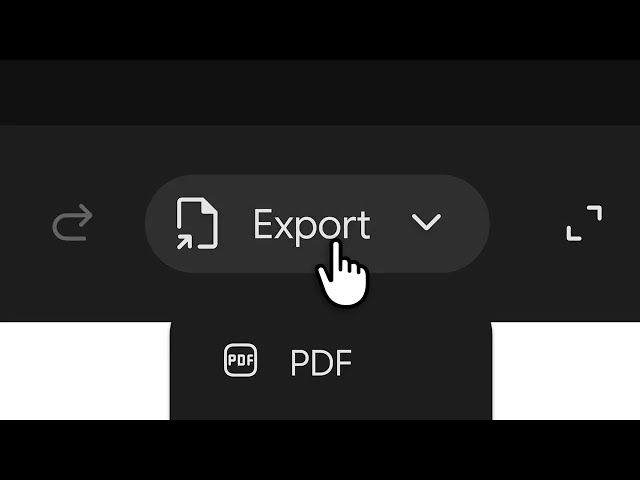
To test export, look at the options shown in the editor. Google's official demo shows the export menu with PDF; the available options may depend on the format and platform.
Frequently asked questions about edit files in Gemini
How to edit files in Gemini?
Open a conversation, ask for the file to be created or reviewed, use the full screen preview and highlight sections to request specific changes. Then review the result before using it.
Which file formats can Gemini edit?
The announcement lists Google Docs, Sheets, presentations, Markdown, TXT, PDFs and code files. PDFs work on Web and mobile; the other formats mentioned are for Web.
Is it possible to edit files in Gemini on mobile?
Yes, PDFs can be previewed and edited on Web and mobile. Docs, spreadsheets, presentations, Markdown, TXT and code are supported on Web.
Does Gemini run the code it edits?
The announcement confirms code file editing on Web, but does not say that Gemini runs the code or runs tests on your computer. Validate the file in your own environment.
Is the Gemini file editor available in all languages?
Google says the feature is available to users in all languages where the Gemini app is available. Availability may vary by platform and format.
Editing in Gemini speeds up drafts, not validation
The editor helps you start and refine documents, presentations, spreadsheets and code files without leaving the conversation. Full screen mode and snippet selection make targeted adjustments simpler.
Use the feature as a step in the workflow, not as final approval. Confirm the changes, keep the source and do your own tests before publishing a file or connecting code to other systems.
Your idea could be running with an AI squad. Build your squad and coordinate the steps on bridgecode.
Source: Google
Tags:#Gemini#editar arquivos no Gemini#tutorial#produtividade#código
Developer and creator of bridgecode, an agentic development environment for orchestrating squads of AI agents. Helps people going from vibe coding to professional development move from idea to shipped product.
Related articles
Dicas
How to test AI agents in cloud operations with CloudOpsBench
CloudOpsBench releases 45 cloud operation tasks to test your AI agent. See how to clone, validate and run against an emulator or real AWS.
6 min

Dicas
Tencent's Hy4: 1M context, vision and tool calling
Tencent's Hy4 brings 1 million tokens of context, vision and native tool calling for code agents and long duration tasks.
5 min

Dicas
5 tips to operate desktop with agent-desktop
Vercel Labs launched agent-desktop, a tool that lets AI agents operate desktop applications via the accessibility tree. See how it works.
6 min